 Spreadsheet Confession
Search and Findability: Making Records Easy to Find
Good record titles, filters, saved views and tags that stop your team asking "where is it?" in the chat every afternoon.
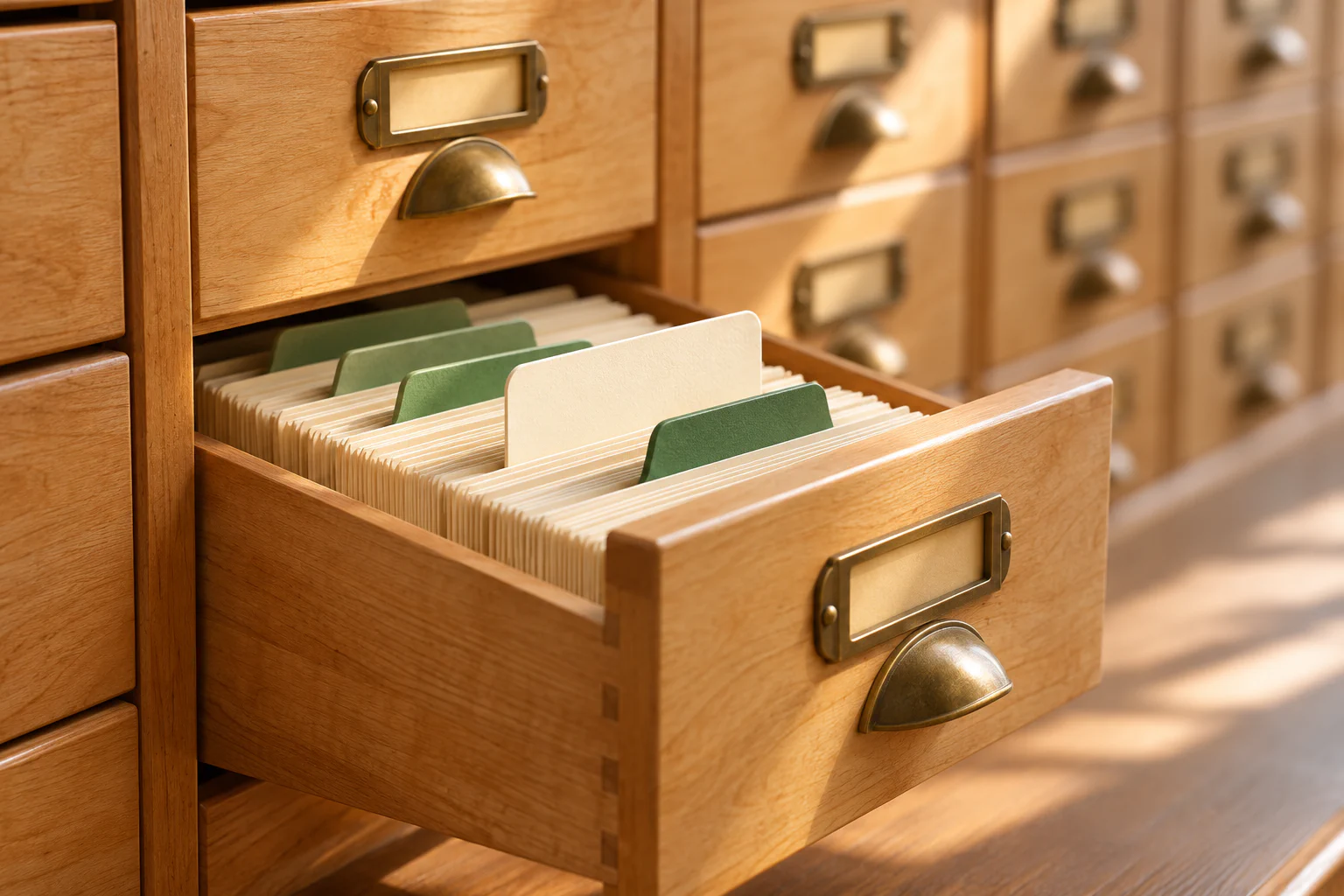
Every afternoon, somebody posts in the team chat: “Does anyone have the link to the Hendricks order?” Someone else replies with a link. A third person says thanks, they were looking for that too. The order is sitting right there in your shiny new tool, but nobody can find it without asking.
If people can’t find a record in under a minute, they will stop looking and start asking. Then they start keeping their own copies, and you are halfway back to purgatory.
Why findability gets ignored
When you design a new tool, you think about how records get created and how they move through a process. You rarely think about how someone will find record number 4,312 eight months from now.
In a spreadsheet, finding things was crude but familiar: scroll, or press the find shortcut and type. Users knew every row was on the screen somewhere. In a proper tool, records live behind views, filters and permissions. That is better for almost everything, but only if you design the way back in.
Start with the record title
Every tool shows a primary label for each record: the bit of text that appears in search results, lists and links. Get this right and half your findability problems disappear.
A bad title is something like “Order” or “Request #4312”. It tells you nothing in a list of fifty. A good title combines the two or three things people actually search by. For an order, that might be the customer name, a short description and the date:
Hendricks Ltd – 40 office chairs – Mar 2026
Most tools let you build the title automatically from other fields, so nobody has to type it consistently. Use that. Hand-typed titles drift quickly into “hendricks chairs”, “HENDRICKS”, and “chairs (the big one)”.
Keep the unique ID visible too, as covered in Unique IDs: The Boring Field That Saves Your Migration. People quoting “ORD-4312” on the phone is a good thing.
Use structured fields, not just search
Text search is fine when you know the exact name. It falls apart when the question is “the order for that architecture firm in Leeds, the one from spring”. That is a filtering question, not a search question.
Filters work only when the underlying data is structured. If “region” is a picklist, you can filter by it. If it’s typed free text, you’ll get “Leeds”, “leeds”, “Leeds office” and “LDS”, and the filter misses half of them. Picklists, Free Text and Everything Between: Designing Fields People Fill In Correctly goes into this in depth.
Think about the questions people ask about records, then make sure each one maps to a field you can filter on:
| People ask… | You need a field for… |
|---|---|
| “Which ones are mine?” | Owner (linked to a person) |
| “What’s overdue?” | Due date and status |
| “Anything for this client?” | Linked client record |
| “What came in last week?” | Created date (automatic) |
| “Which are the urgent ones?” | Priority as a picklist |
Saved views are your new tabs
People loved spreadsheet tabs because they were named places to go. Saved views do the same job, and you should create them deliberately rather than leaving everyone to build their own filters each time.
A good starting set for most processes:
- My open items: filtered to the current user and not closed.
- Team queue: everything awaiting action, sorted by due date.
- Recently updated: the last 50 changes, for people who just touched something and lost it.
- By client or by site: grouped, for anyone handling a phone call.
Name views for the question they answer, not the filter they apply. “What needs my attention” beats “Status ≠ Closed AND Owner = Me”.
Then prune. Ten well-named views beat forty half-abandoned ones. If a view hasn’t been opened in three months, archive it.
Tags: useful, in moderation
Tags are flexible labels you can attach to records, such as “VIP client”, “warranty claim” or “trade show lead”. They’re great for cutting across your normal structure.
They are also easy to ruin. Within a year, unmanaged tags grow into a list of 300 with “vip”, “VIP”, “V.I.P.” and “very important”. Keep a short, controlled list, give one person the job of adding new tags, and review the list every quarter. If a tag gets used on most records, it should probably be a proper field instead.
Links make records findable from each other
Linked records are a findability tool in disguise. If an order links to its client, someone looking at the client can see every order. If a support case links to the order, the person handling the case can jump straight to it.
This is often how people actually navigate: they start from something they know (the client, the site, the employee) and follow links to what they need. Make sure the important links show up on both sides of the relationship.
Point people to the tool, not to copies
Findability is partly a habit. If the team keeps sharing screenshots and exported files, they’ll keep asking for screenshots and exported files.
Encourage sharing record links instead. Many tools let you copy a link to any record or view; make that the standard answer to “where is it?” When the person who asks gets a link rather than an attachment, they learn where things live.
Where to start this week
- Look at the titles of your last 20 records. If you can’t tell them apart from the title alone, set up an automatic title formula.
- Collect the last ten “where is it?” questions from the team chat and check whether each could be answered by a filter. Add the missing fields.
- Create the four starter views above and pin them where people will see them first.
- Audit your tag list and merge duplicates.