 Spreadsheet Confession
Who Owns This Sheet? Mapping the Shadow Processes in Your Company
Before you migrate anything, inventory the spreadsheets your business actually runs on: who maintains them, who reads them, and what breaks without them.
A logistics manager once told me her team had “about five” important spreadsheets. Two weeks later, after actually counting, the list stood at 31. One of them calculated driver bonuses. Nobody in finance knew it existed, and it lived in the personal drive of someone who had moved to a different department.
You can’t fix what you can’t see. Before you migrate a single sheet, you need a map of the ones your business quietly runs on.
What a shadow process is
A shadow process is any business workflow that runs outside your official systems. It isn’t in the process documentation, IT doesn’t know about it, and it usually lives in a spreadsheet someone built to fill a gap.
Shadow processes aren’t a sign of a badly run team. They’re a sign of a resourceful one. Someone needed to track supplier lead times, the official system didn’t do it, so they made a sheet. The problem is that nobody wrote it down, and now three other teams depend on it.
Step 1: Find the sheets
You’ll find them in three ways, and you need all three because each catches things the others miss.
Ask people directly. Send a short message to each team lead: “Which spreadsheets would cause a problem for you if they disappeared tomorrow?” The phrasing matters. “Do you use any spreadsheets?” gets you a shrug. “What would break?” gets you a list.
Follow the data. Look at what reports, invoices and decisions get made each month, then work backwards. Where did the numbers in the board pack come from? Who sends the weekly utilisation figures, and what file do they build them from?
Search the drives. Your IT team can often pull a list of the most-edited or most-shared files on your shared storage. Files edited by many people, or edited every day, are strong candidates. So are files with names like “tracker”, “master”, “log” or “register”.
Step 2: Record what you find
For each sheet, capture the same handful of facts. A simple table works, and yes, it’s fine to keep this one in a spreadsheet. It’s analysis, not a process.
| Field | What to record | Example |
|---|---|---|
| Name and location | Where the file lives | “Supplier Lead Times”, shared ops drive |
| Owner | Who maintains its structure | Dev, procurement |
| Editors | Who adds or changes data | 4 people in procurement |
| Readers | Who relies on it without editing | Planning, finance |
| Process it supports | The business job it does | Setting reorder dates |
| Frequency | How often it’s touched | Daily |
| Inputs and outputs | What feeds it, what it feeds | Fed by supplier emails; feeds the weekly purchase plan |
| What breaks without it | The consequence if it vanished | Stockouts within two weeks |
The two columns people skip are “Readers” and “What breaks without it”. They’re also the two that matter most. Editors know they use the sheet. Readers often don’t realise their figures come from somewhere fragile.
Step 3: Trace the connections
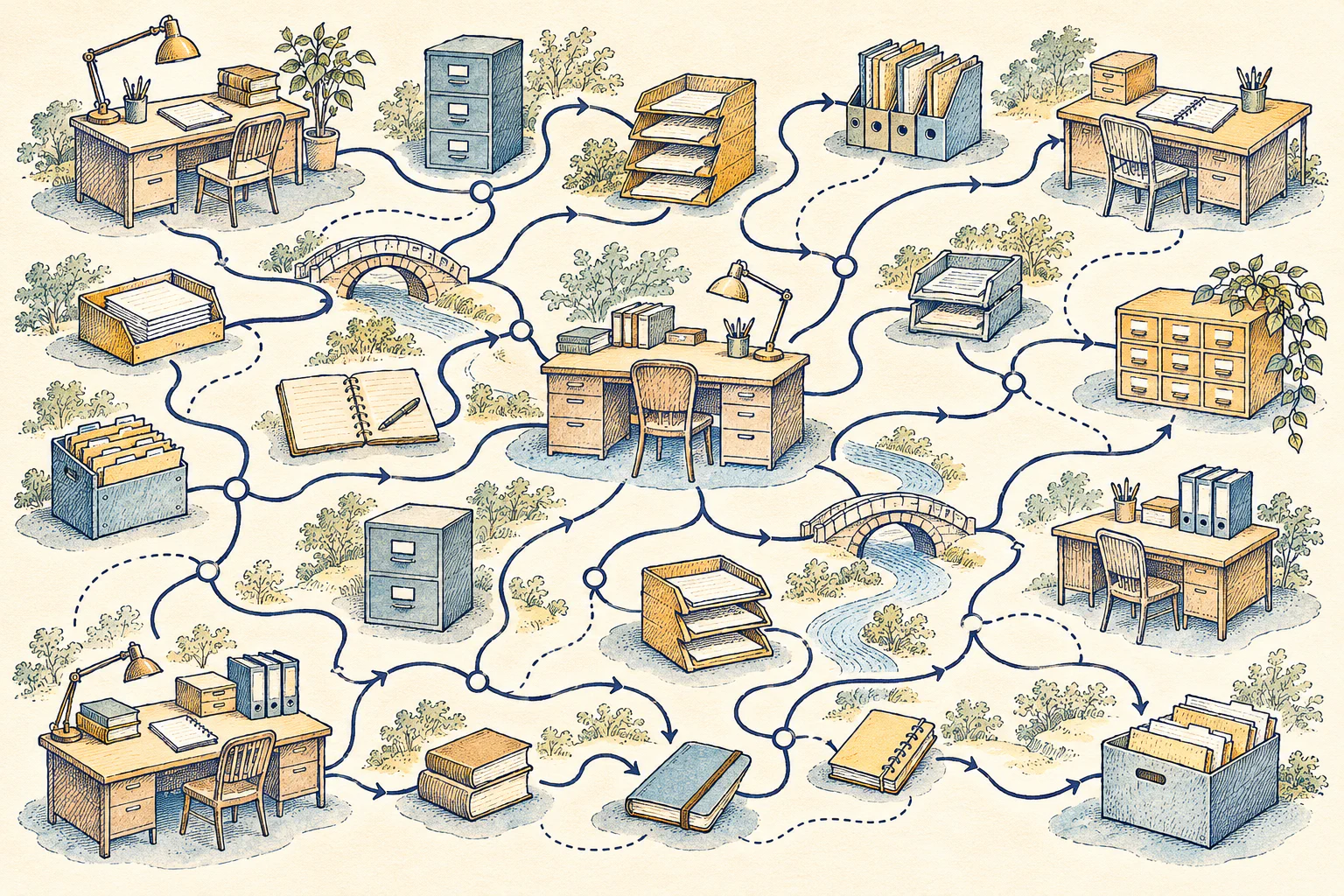
Spreadsheets rarely stand alone. One pulls figures from another through a link between files. A third gets built every Monday by copying and pasting from the first two. Draw these as boxes and arrows on a whiteboard or a single page.
You’ll usually find a few hubs: sheets that many others feed into or read from. Our logistics manager found that her “Route Planning” sheet fed six others, including the driver bonus calculation. That made it the most important file in the department, despite nobody having called it that.
Hubs deserve attention first, both because they’re risky and because fixing them tends to simplify everything downstream.
Step 4: Rate each sheet
Once you have the list, sort it. Two questions do most of the work:
- How bad is it if this breaks? Think in terms of customers, money and compliance. A wrong bonus figure is worse than a wrong lunch rota.
- How likely is it to break? Single owners, heavy editing, complex formulas and the warning signs from The 7 Signs Your Spreadsheet Has Become a Database (And Is Failing at It) all raise the odds.
Score each from 1 to 3 and multiply. Anything scoring 6 or 9 goes on your shortlist. Anything scoring 1 or 2 can probably stay as it is for now.
Don’t forget to note which sheets are genuinely fine as spreadsheets. A forecasting model that one analyst rebuilds each quarter isn’t a shadow process; it’s analysis. When a Spreadsheet Is Actually the Right Tool covers how to tell the difference.
Handling the human side
People can get defensive when you start asking about their spreadsheets. To them it can feel like an audit, or like you’re about to take away the thing that makes their job work.
Be clear about your purpose. You’re not looking for someone to blame, and you’re not going to delete anything. You’re trying to make sure the business doesn’t fall over if someone goes on holiday. Most sheet owners are relieved to hear it. Many have been worrying about the same thing for years.
It also helps to credit the people who built these sheets. They solved a real problem with the tools they had. Your migration plan will go much more smoothly with them as allies than as reluctant witnesses.
What you end up with
At the end of this exercise you should have three things:
- A list of every spreadsheet that supports a real business process, with an owner for each.
- A simple diagram of how they connect, with the hubs highlighted.
- A shortlist of the riskiest few, ranked.
That shortlist is your migration roadmap. Before building anything, you’ll want to document how each process actually works, which Process First, Tool Second: Documenting a Workflow Before You Build It walks through.
Where to start this week
- Send the “what would break?” message to every team lead you work with. Give them a few days and a single question; don’t attach a form.
- Set up your inventory table with the eight fields above and fill in the first five sheets you already know about.
- Ask IT for a list of the most-edited shared files from the last 90 days. Cross-check it against what people told you.
- Identify one hub. Find the sheet that the most other sheets or reports depend on, and confirm who owns it.